
Video Light Change Effect
🎥 LIGHTING SWAP METHOD
Turn 1 Video into Multiple Cinematic Looks
This workflow lets you change the lighting of any video using AI — without reshooting anything.
You’ll take one frame from your video, generate new lighting styles, then transfer those looks back onto the full video.
And if you really want to scale with AI, these prompts are just used in one method, inside The AI Creator & Business Scale Library, I’m teaching how to create full campaign level AI shoots - not just single images, but entire visual systems you can use for content, ads and products.
BONUS: Unlock my done for you campaign styles + workflow for the first 100 buyers!
✅ WHAT YOU NEED
• A video (any clip works)
• Nano Banana (for image relighting)
• Kling 01 Video Edit Model (for video transfer)
STEP 1 — Choose Your Base Video
Pick a video with:
✅ Clear subject
✅ Stable framing (not too chaotic)
✅ Visible lighting on subject
Works best:
• Talking head
• Lifestyle shots
• Editorial clips
• Cinematic B-roll
This video will be "Video 1"
STEP 2 — Create Your Start Frame
Open your video
Go to the first clean frame where the subject is visible
Screenshot it
👉 This becomes your Start Frame
Why this matters:
The AI uses this frame as the lighting reference anchor.
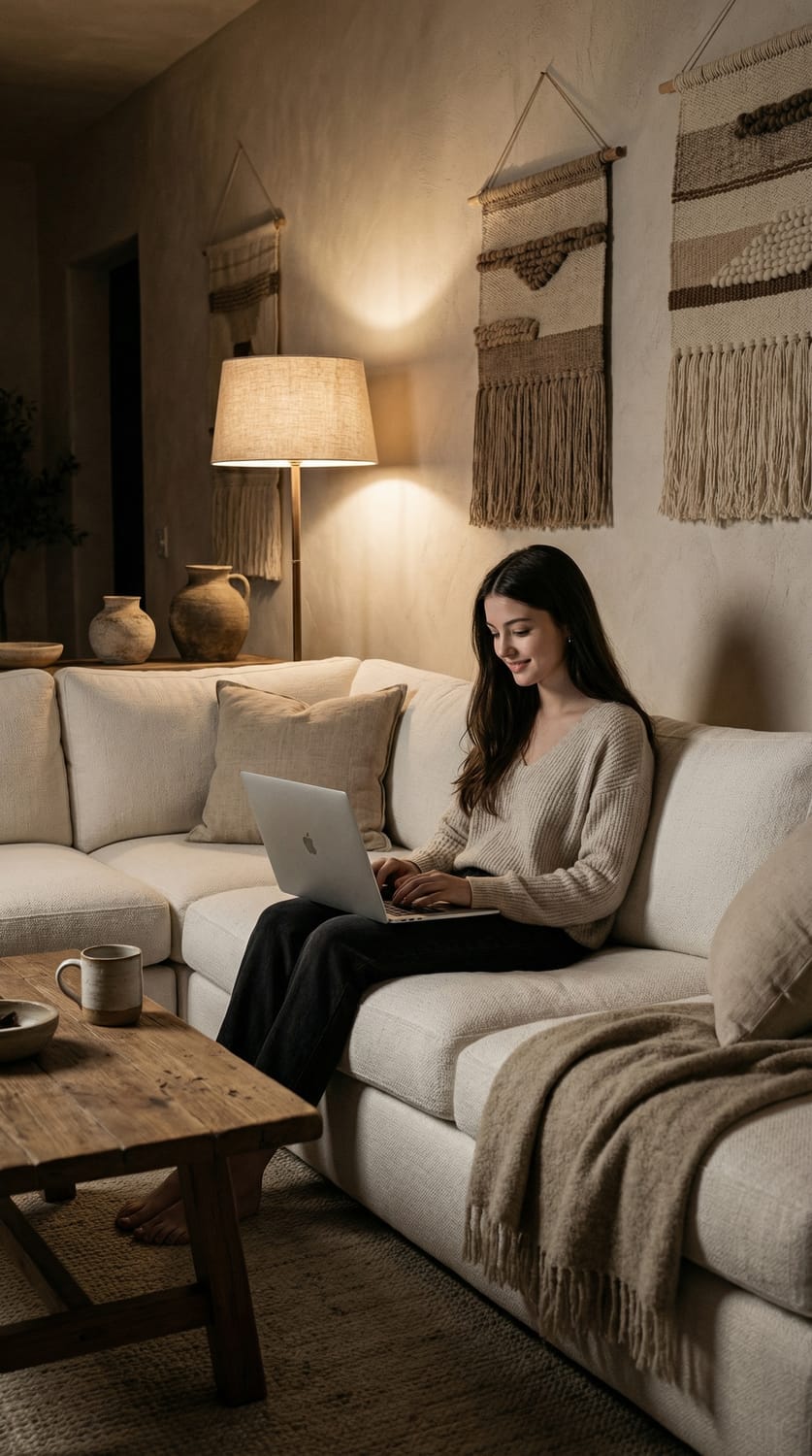
STEP 3 — Generate Lighting Variations (Nano Banana)
Upload your Image into Nano Banana.
Ask for lighting changes only — not pose, not background, not outfit.
Prompts:
1. Keep everything identical but change lighting to cinematic teal-and-orange contrast. Cool blue fill light from one side, warm orange rim light from behind, high dynamic range, dramatic but realistic lighting, soft diffusion, editorial film look, shallow mood lighting, no change in composition.
2. Relight the exact same scene with warm cinematic lighting. A soft golden lamp glow from behind the couch creates a halo behind the subject, gentle shadows on the face, cozy evening ambience, realistic falloff, subtle film grain, natural skin tones, editorial cinematic color grading, no change to pose or environment.
3. Same scene, add a single warm spotlight beam from above left, visible light rays in slight haze, strong cinematic shadow shaping, background falls into darkness, dramatic contrast, film noir mood, natural realism, environment unchanged.
4. Keep the exact scene but change lighting to ambient purple and blue tones, subtle RGB practical light glow behind couch, soft neon ambience, cinematic night vibe, realistic color blending, natural shadow falloff, environment untouched.
5. Relight as if golden hour sunlight is coming from a window off-frame, warm directional light, soft long shadows, natural sunset glow, gentle highlights on face and couch fabric, cozy editorial tone, scene composition unchanged.
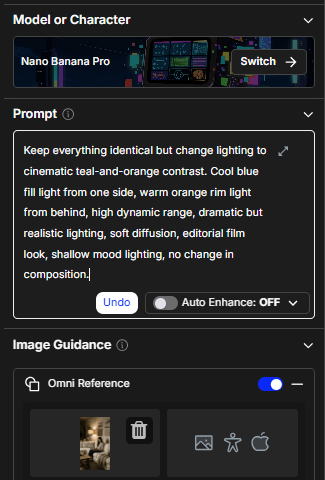
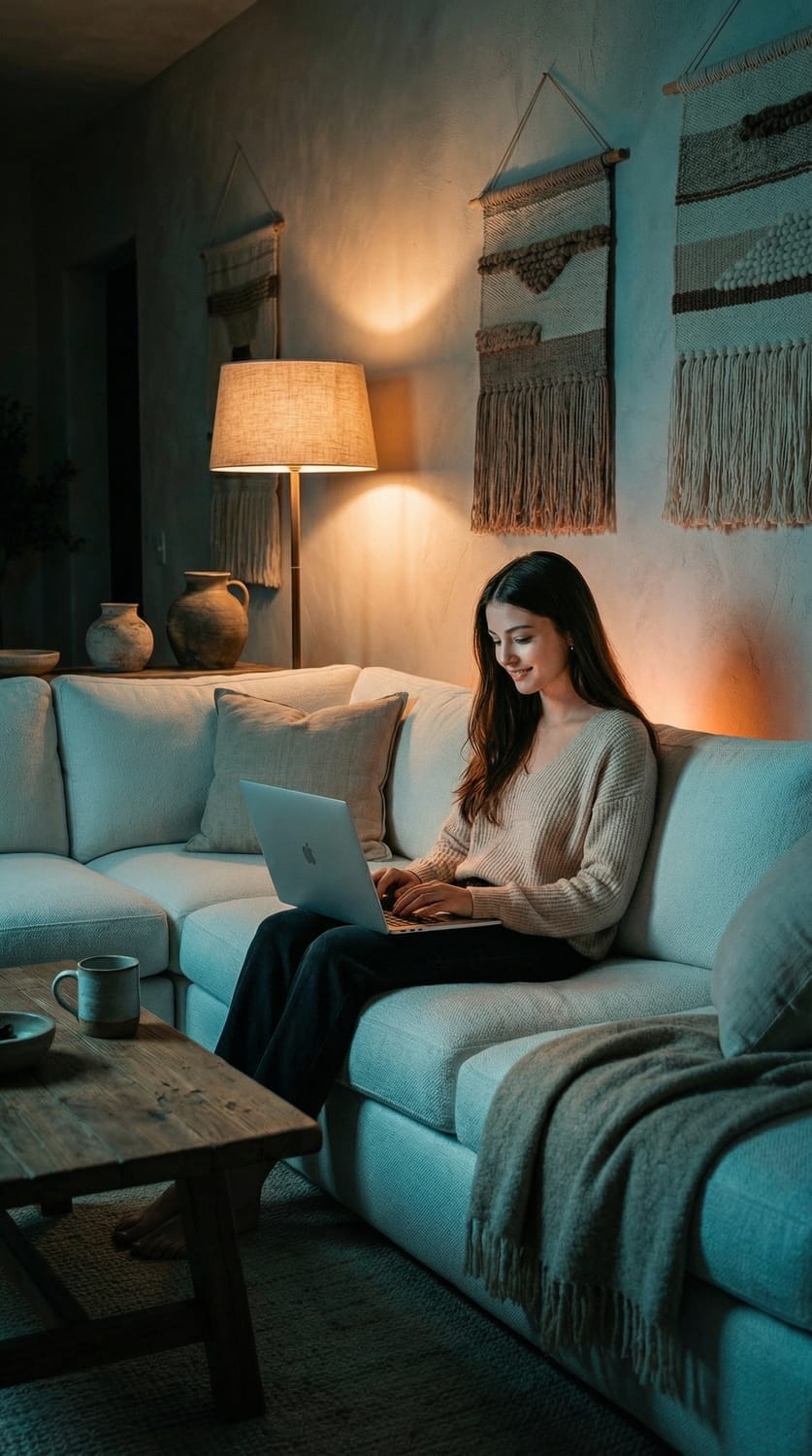
This image is now Image 1
💡 Pro Tip:
Generate 3–5 lighting styles so you can test which converts best.
STEP 4 — Transfer Lighting to Video (Kling 01)
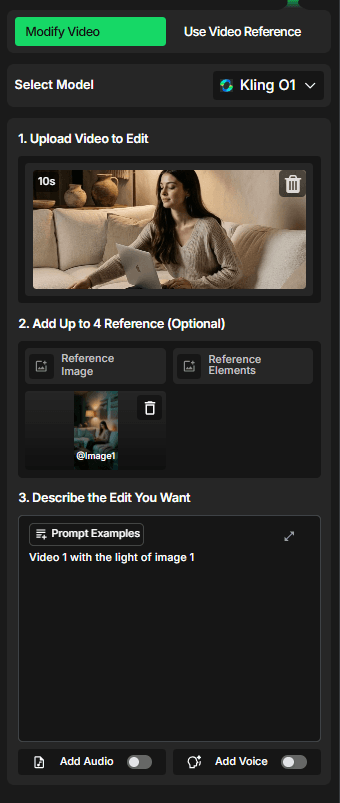
Open Kling 01 Video Edit Model.
Upload:
• Original video
• ONE lighting image from Nano Banana
Prompt:
Video 1 with light from image 1
That’s it.
Kling will apply the lighting style onto your video.
Follow


Drop your email address below to get our newsletter.
Privacy policy | Terms of use | Cookies